Clarity TAAC Anti-Aliasing Enhancer
Description
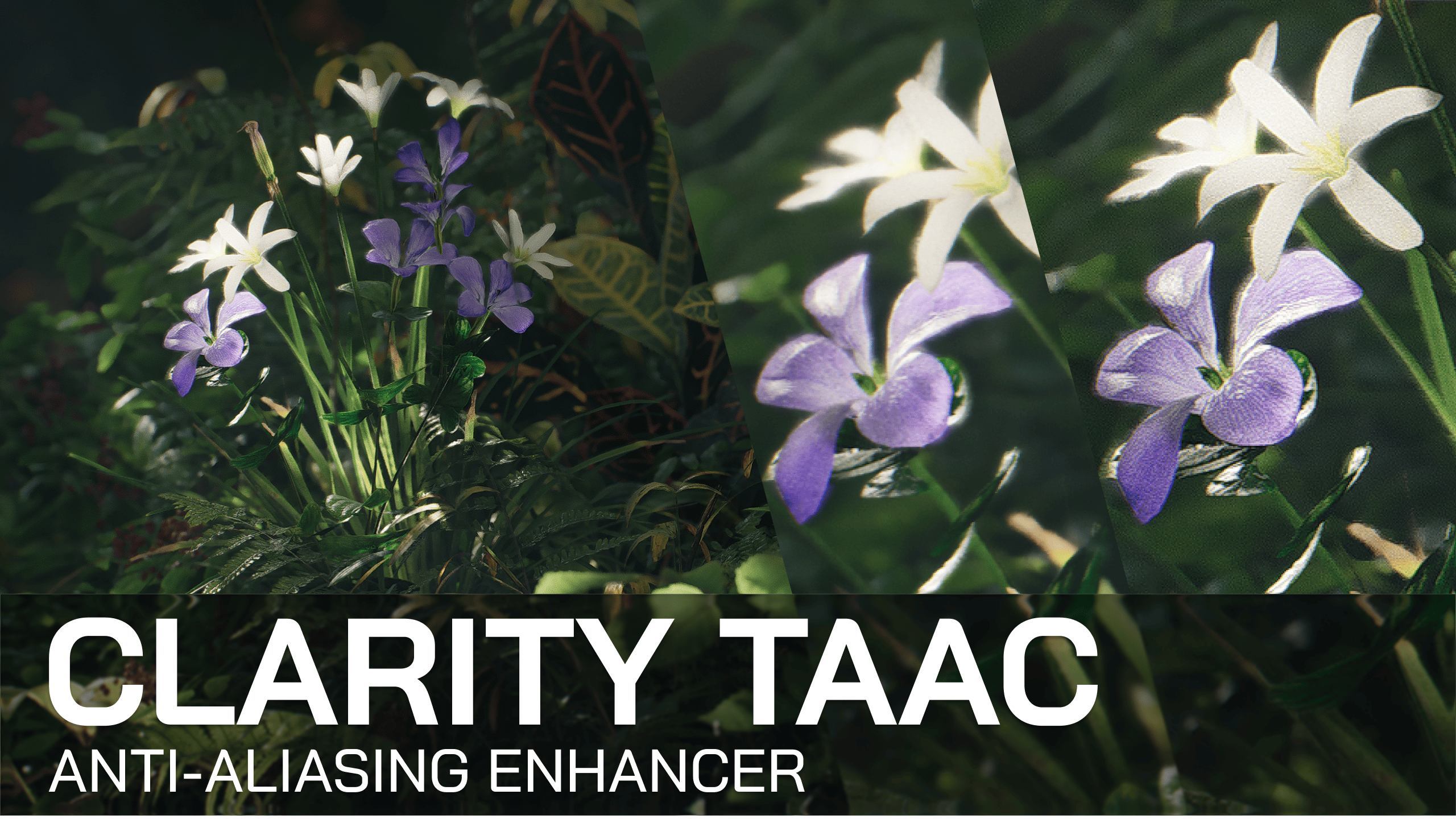
Clarity is a plugin designed to reduce image blurriness and the soapy look often associated with standard TAA. It works as an add-on to Unreal’s default temporal pipeline. It enhances standard TAA with two additional layers: dynamic parameter adjustments during motion and a custom reactive pass that improves local clarity.
Thank you for your purchase! I hope my product will be useful to you.
If you like it, please consider leaving a ⭐⭐⭐⭐⭐ review. It would help me a lot!
If you have any questions, feel free to ask on the Discord server.
🍀 Good luck with your projects!
Documentation
The plugin is primarily designed for TAA, but can also work fine with TSR. Also, don't forget that TSR is much more expensive in terms of performance than TAA.
You can also use it with other AAs or without AA at all to get a sharper image, but dynamic parameter adjustment will not work (because other AAs are not temporal). Sharpen and reactive pass will work with any AA.
Unreal is built around temporal solutions, so TAA/TSR will give the best results.
How to use the plugin
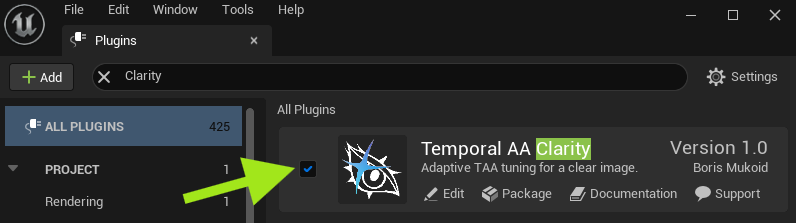
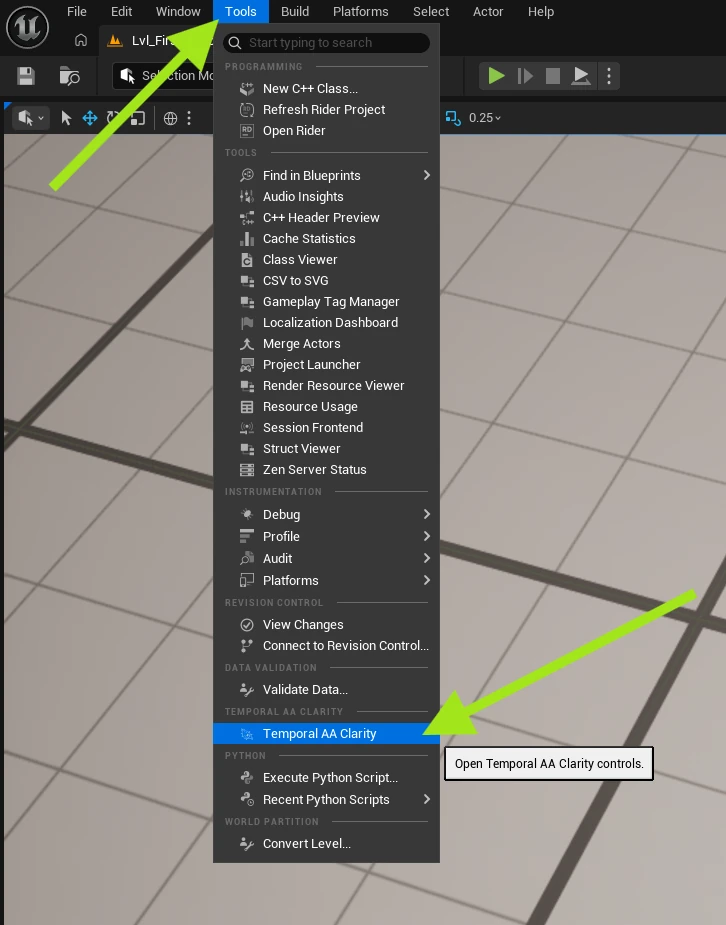
The plugin is very easy to use. Just enable it, open the Tools tab and find Temporal AA Clarity.
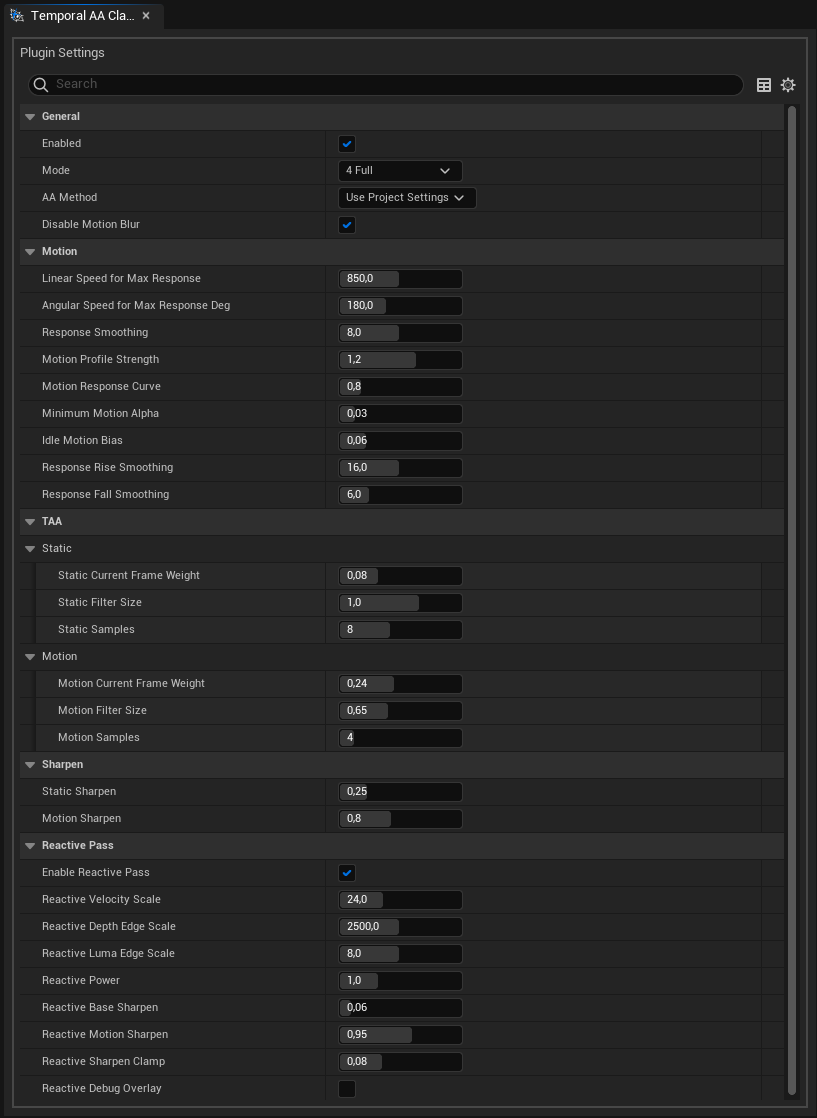
Many people may find the image being oversharped by the default, which is mainly due to the Reactive Pass settings. Try to find a balance between image clarity and sharpness that suits your project.
Try different modes because it's a matter of taste. My friend said he likes adaptive mode, but I prefer a full mode even though it's a little over-sharpened.
You can switch between different AA settings directly from the plugin to see the difference, but it's better to just set the AA you need in the project settings.
The plugin also disables motion blur in the project because some motion blur is already created by your monitor's matrix completely for free and you don't need any more than that.
Modes
The plugin has 5 modes:
- Mode -1: Runtime override (Does not save to
DefaultGame.ini) - Mode 0: Off
- Mode 1: CVar Only
- Mode 2: Adaptive Only
- Mode 3: Reactive Only
- Mode 4: Full
Blueprints
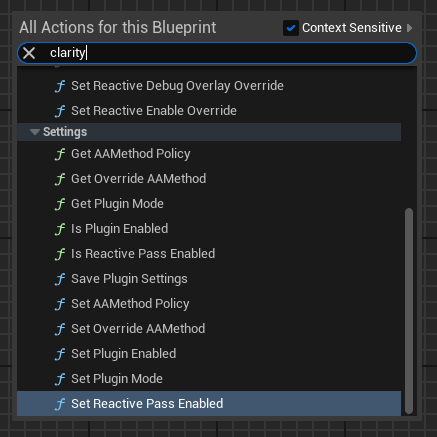
If you need to configure the plugin via code or blueprints, you have two options: use functions from the blueprint library, which can be found by typing clarity or use console commands.
You can use Blueprint nodes for:
- Persistent plugin settings
- Runtime overrides
- Saving settings to config
Console commands
Main control
taaclarity.Mode -1..4taaclarity.Debug 0 or 1taaclarity.ForceMotionAlpha -1..1
ForceMotionAlpha values:
-1automatic motion response0static profile1motion profile
Reactive pass switches
taaclarity.Reactive.Enable -1 or 0 or 1taaclarity.Reactive.DebugOverlay -1 or 0 or 1
Reactive switch values:
-1use plugin settings0disabled1enabled
Reactive tuning parameters
-1 means use plugin settings value.
taaclarity.Reactive.VelocityScaletaaclarity.Reactive.DepthEdgeScaletaaclarity.Reactive.LumaEdgeScaletaaclarity.Reactive.Powertaaclarity.Reactive.BaseSharpentaaclarity.Reactive.MotionSharpentaaclarity.Reactive.SharpenClamp
Saving
Not every panel in the plugin saves to disk. There are two layers:
Persistent layer (saved to Config/DefaultGame.ini)
Changes made here stick across editor restarts and are picked up by version control.
- Project Settings → Plugins → Temporal AA Clarity
- Tools → Temporal AA Clarity → Temporal AA Clarity
Values are written automatically the moment you edit them. No Save button is needed.
Runtime-only layer (not saved)
These channels only write CVar overrides in memory. They reset to defaults on every engine restart and leave no trace in version control. This is by design — use them for live tuning, not for project configuration.
- Runtime Panel (viewport overlay)
- Console commands (
taaclarity.*) - Blueprint setters called with
bSaveConfig = false
Saving from Blueprint
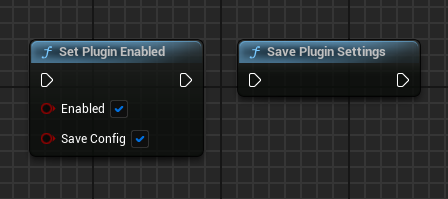
Most Blueprint setters in TemporalAAClarityBlueprintLibrary take a
bSaveConfig flag. Pass true to persist the change to DefaultGame.ini.
You can call SavePluginSettings() at any time to flush the current plugin
settings to disk.
Shipping builds
The Tools panel is editor-only. In packaged builds, values already saved to
DefaultGame.ini are loaded as the project baseline. Runtime overrides
(console, Blueprint, Runtime Panel) still work on top of that baseline but
remain session-only unless you call SavePluginSettings or use a setter with
bSaveConfig = true.
About taaclarity.Mode -1
The -1 value on the taaclarity.Mode CVar is a hardcoded default meaning "no
override, use the saved plugin mode." It does not need to be saved — the CVar
always starts at -1 on engine startup. The actual mode used by the plugin
lives in the Tools panel and is stored in DefaultGame.ini.
Important behavior notes
- Best adaptive behavior is with standard TAA
- Reactive pass can still help with TSR and other temporal solutions
- Please note that the plugin disables motion blur and may force the AA method, so be sure to disable these settings if you need them.
DLSS
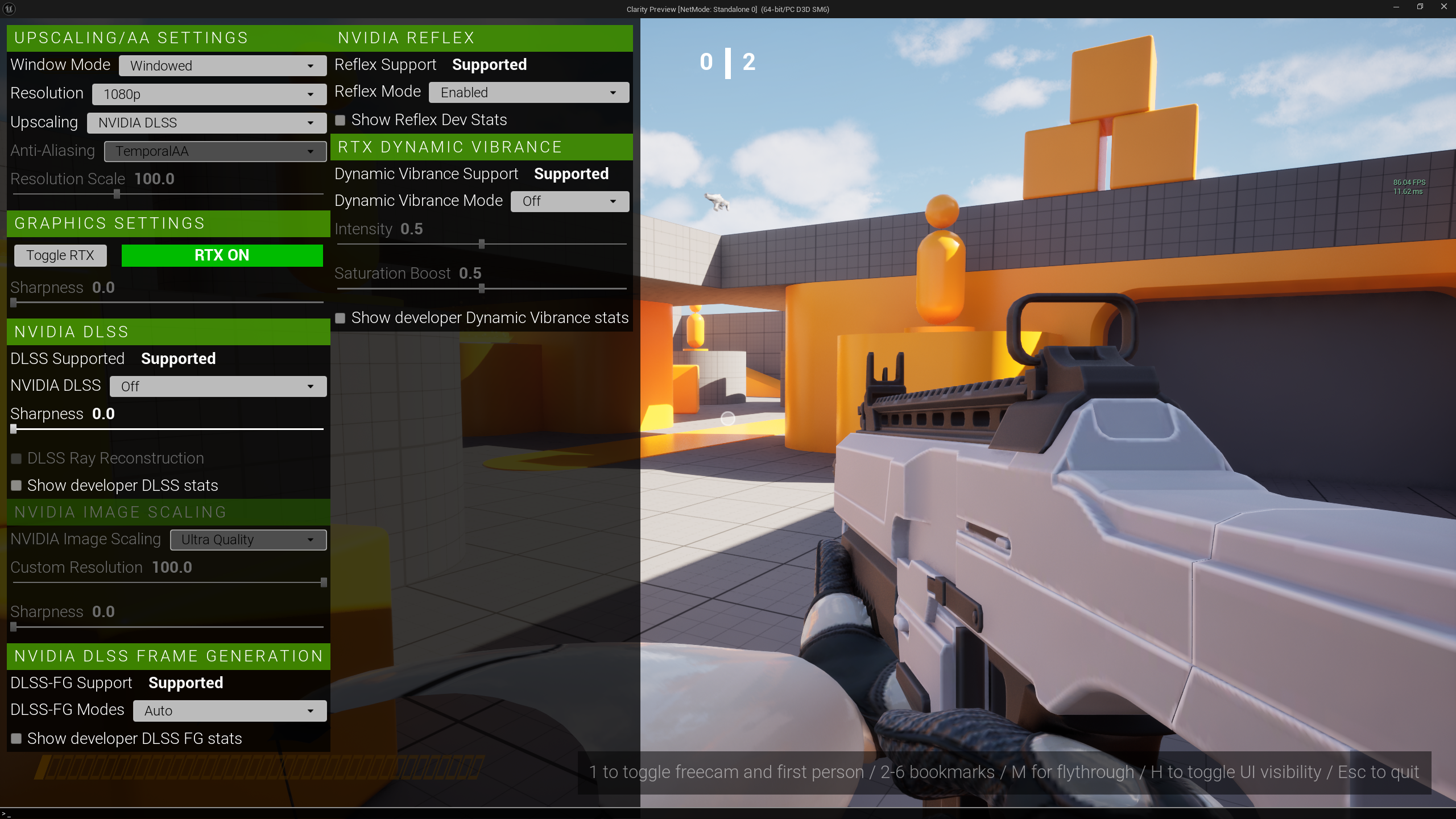
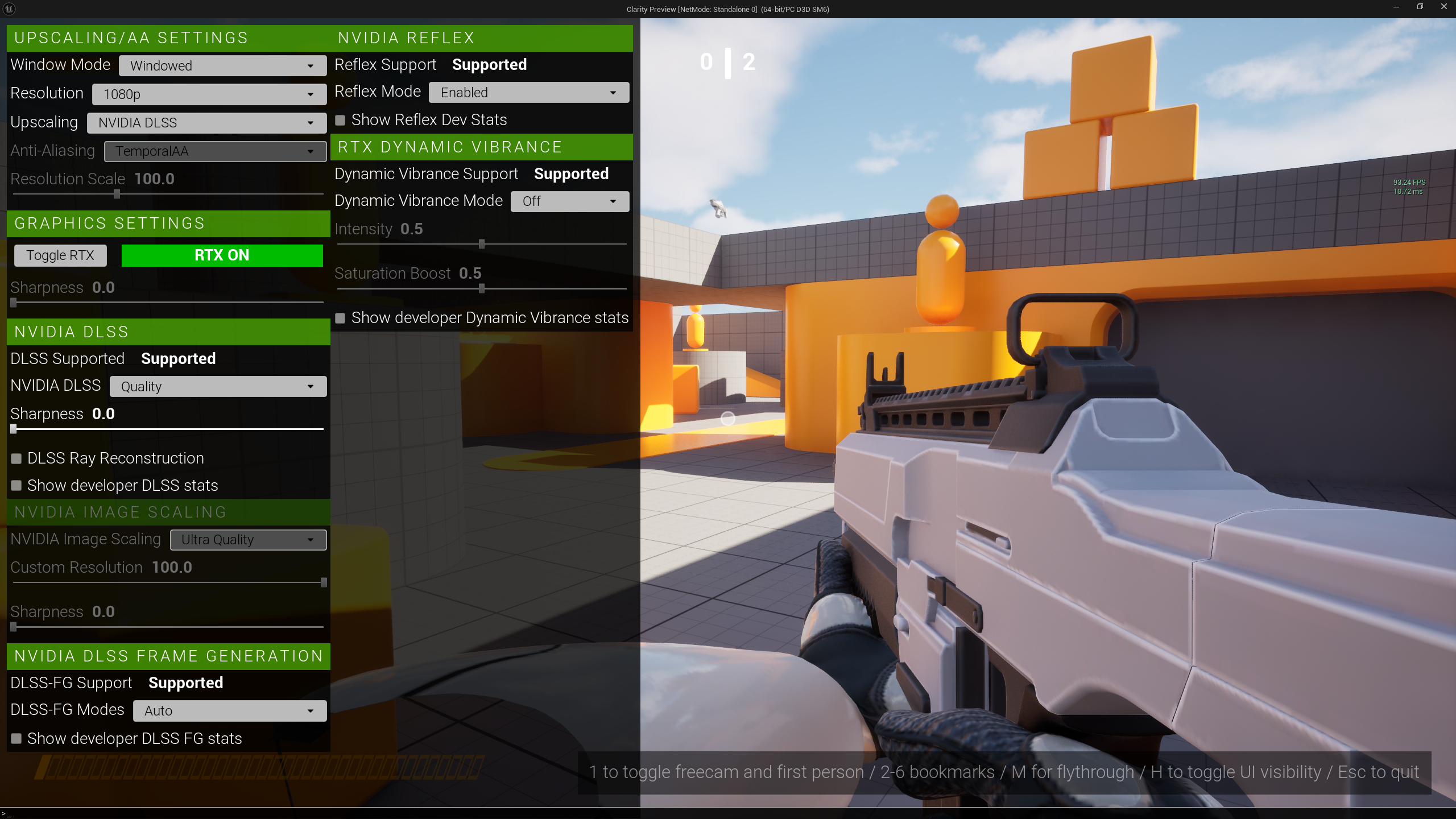
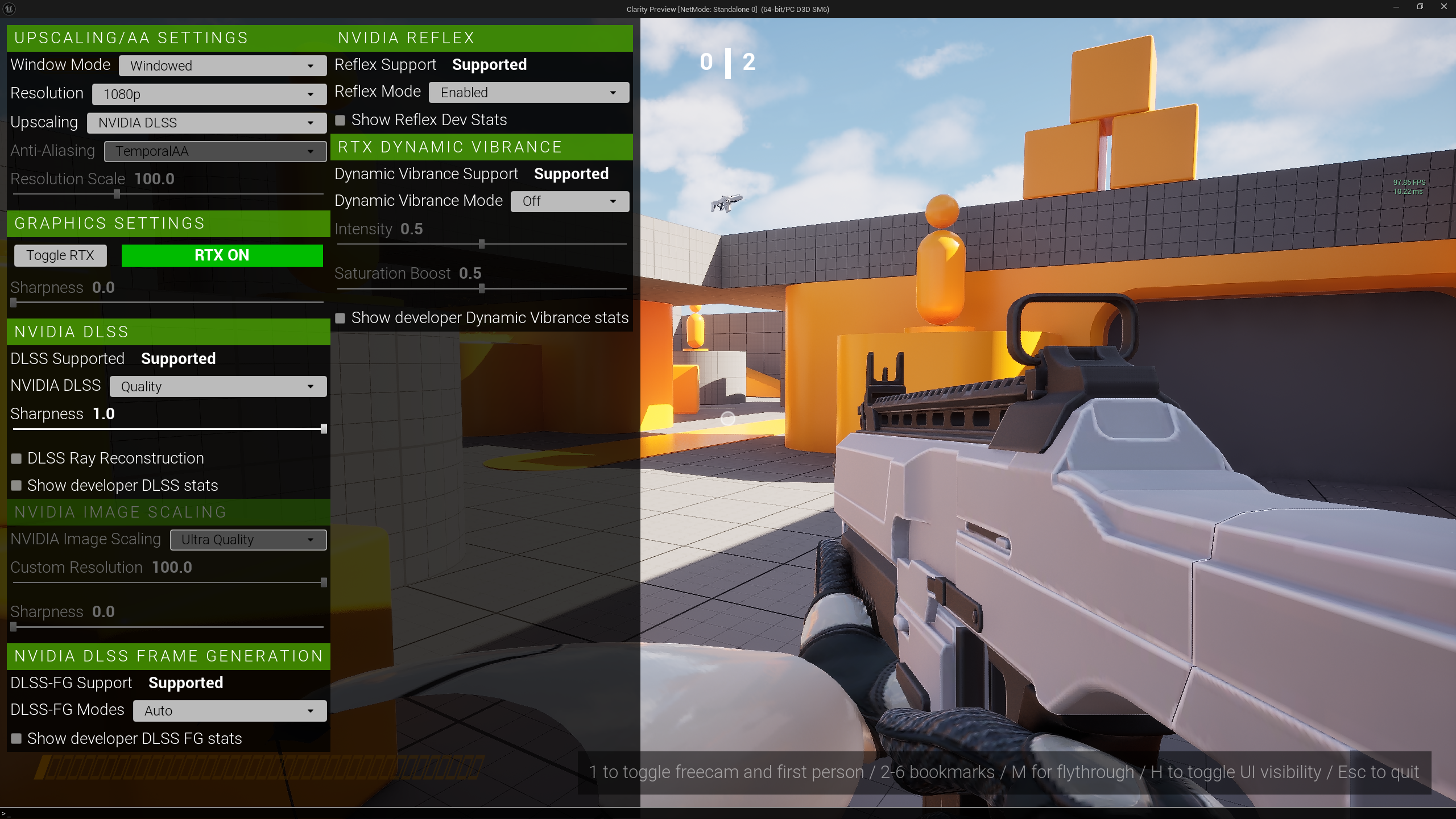
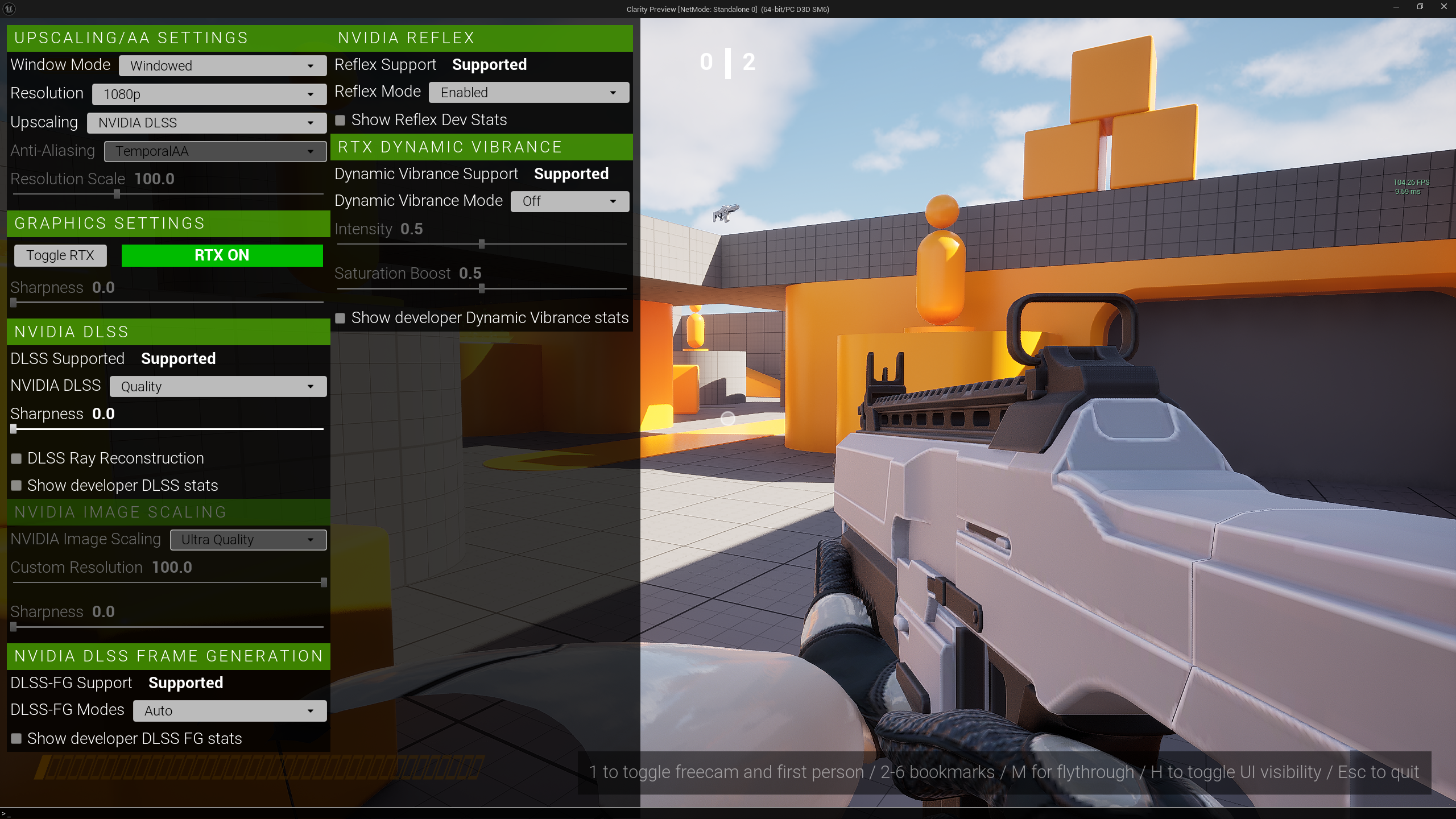
TAAC works with DLSS. TAAC's sharpening produces a significantly cleaner image than the built-in DLSS Sharpness parameter and avoids the visible degradation it can introduce.
Using both sharpening methods at the same time is not recommended because their effects are multiplied.
Supported Unreal Engine Versions
| Unreal Engine | 5.0 | 5.1 | 5.2 | 5.3 | 5.4 | 5.5 | 5.6 | 5.7 | 5.8 |
|---|---|---|---|---|---|---|---|---|---|
| Product version | — | — | — | — | — | — | v1.1 | v1.1 | v1.1 |
Changelog
v1.1
- Sequencer camera preview support
v1.0
- Initial release