Neutral Lighting Scene
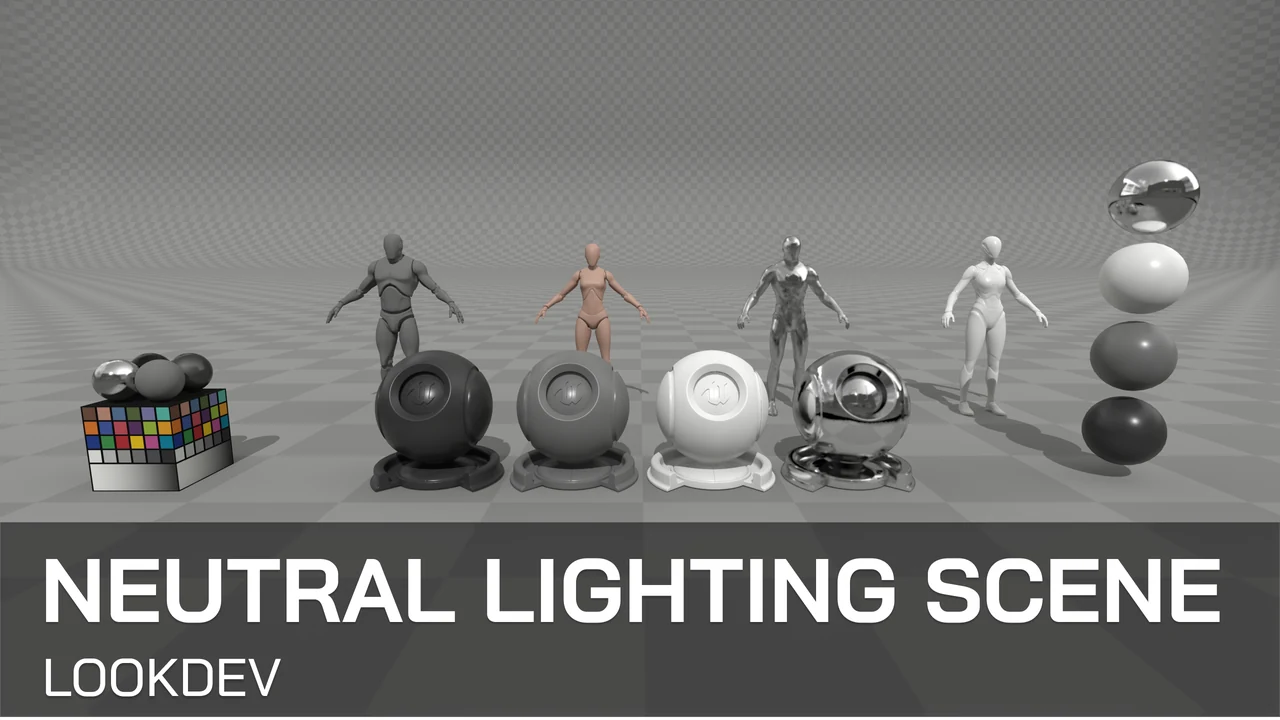
Description
You can use this scene to validate your assets for lookdev. I've also added an Editor Utility Widged so you can easily play with lighting settings to see how your assets behave. You can also switch between the standard post-process and a modified one that does not distort lighting and colors. You can change one of them to match your project so you can switch between them and compare.
Thank you for your purchase! I hope my product will be useful to you.
If you like it, please consider leaving a ⭐⭐⭐⭐⭐ review. It would help me a lot!
If you have any questions, feel free to ask on the Discord server.
🍀 Good luck with your projects!
Documentation
This documentation describes the purpose of a neutral lighting scene and how to work with a scene control tool.
Purpose
A neutral lighting scene is essential in 3D look development because it provides a predictable, even illumination that is free from strong colors, shadows, or intense highlights. This setup allows accurate assessment of 3D assets materials, ensuring that the assets will react correctly to any lighting environment it is placed in later.
Scene Control Tool
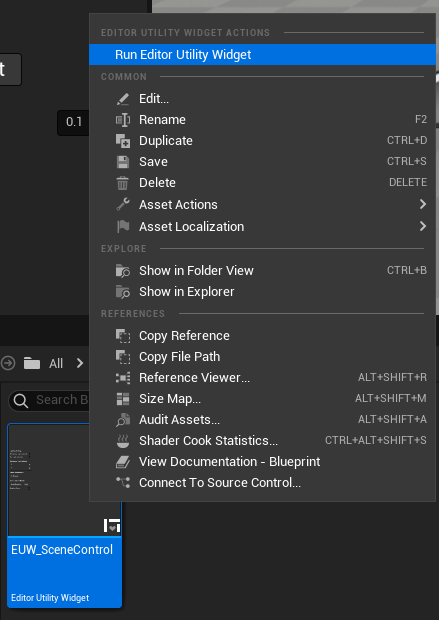
The folder NeutralLightingScene\Blueprints contains EUW_SceneControl.
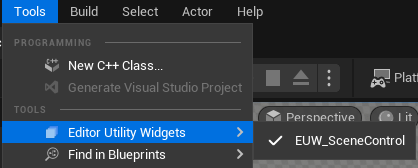
EUW_SceneControl is an Editor Utility Widget that you can use to control
lighting and post process in the scene. You can open it by right-clicking the
widget and selecting the first option or in the tools menu afterwards.
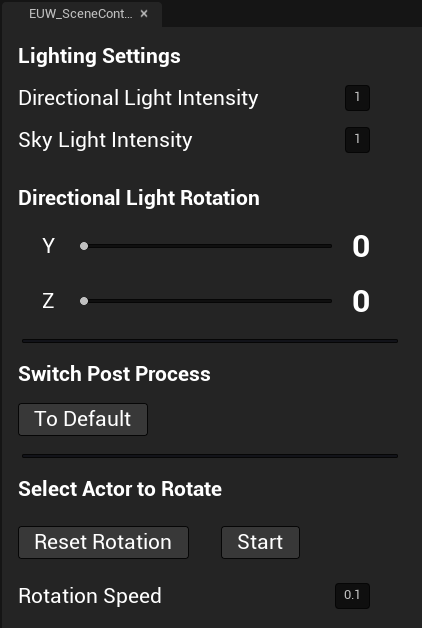
There are a few categories of settings you can use to customize the scene.
You can adjust the brightness and direction of the light.
You can switch between two post processes. This works by reversing the Enabled option for all post processes in the scene. Therefore, if the switch does not work correctly or you want to add your own post process, make sure that the Enabled option is different from the other post process (if it is enabled for one, it must be disabled for the other, and vice versa).
You can also select an actor in the scene and click the start button to make it rotate. You can stop it and reset the rotation. You can adjust the rotation speed. I don't recommend increasing it because it's not in play mode and causes a lot of smearing.
Supported Unreal Engine Versions
| Unreal Engine | 5.0 | 5.1 | 5.2 | 5.3 | 5.4 | 5.5 | 5.6 | 5.7 | 5.8 |
|---|---|---|---|---|---|---|---|---|---|
| Product version | v1.0 | v1.0 | v1.0 | v1.0 | v1.0 | v1.0 | v1.0 | v1.0 | v1.0 |
Changelog
v1.0
- Initial release