Fog Wall VFX
Description
Fog Wall VFX with full Blueprint customization for colors, light, materials, meshes, and smoke parameters. The wall can also be toggled via a blueprint event.
Thank you for your purchase! I hope my product will be useful to you.
If you like it, please consider leaving a ⭐⭐⭐⭐⭐ review. It would help me a lot!
If you have any questions, feel free to ask on the Discord server.
🍀 Good luck with your projects!
Documentation
This documentation describes the VFX customization process.
The folder SoulslikeFogWallVFX\Blueprints contains BP_FogWall. It is the
base Blueprint which holds all the components of the effect.
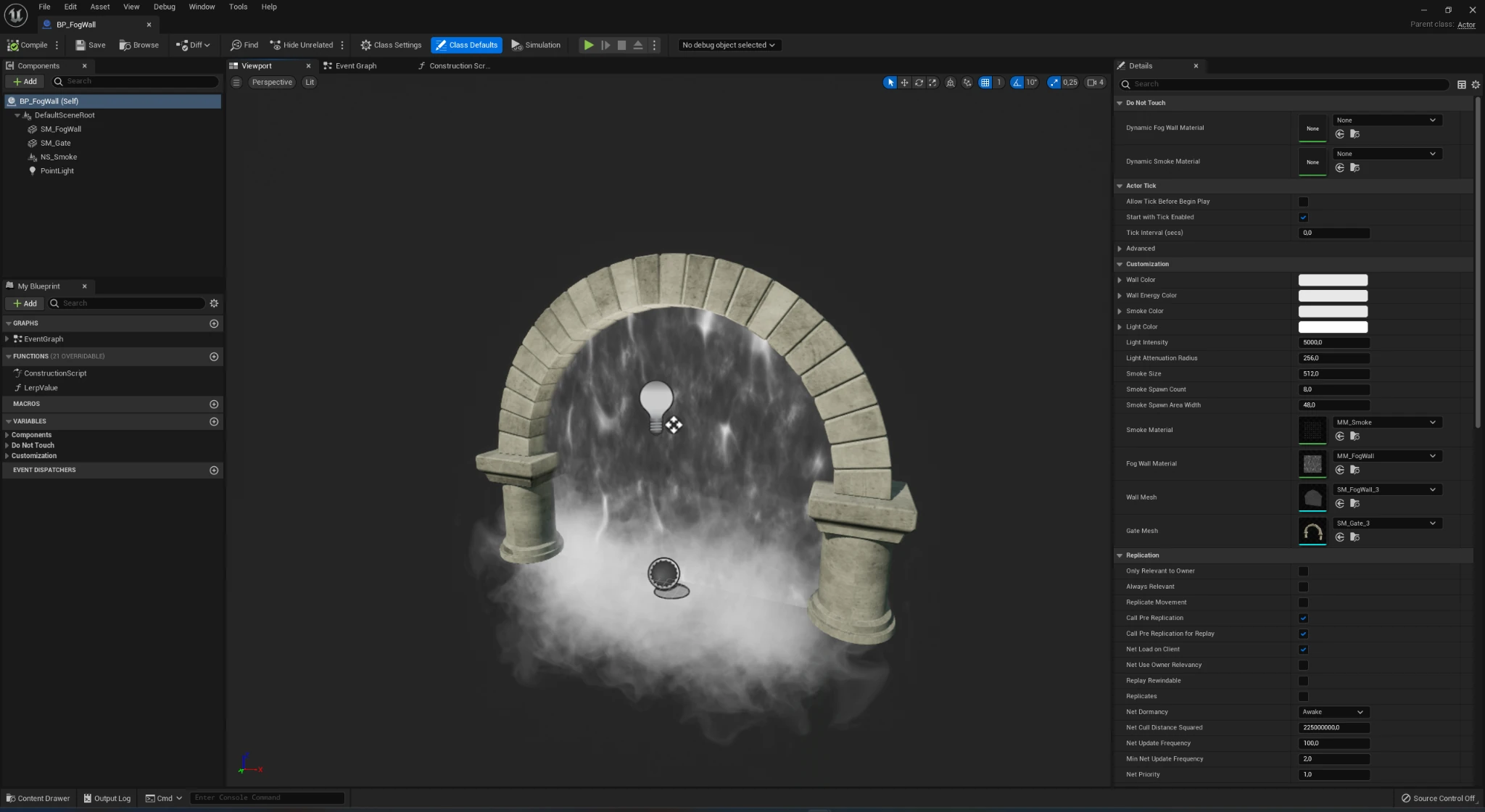
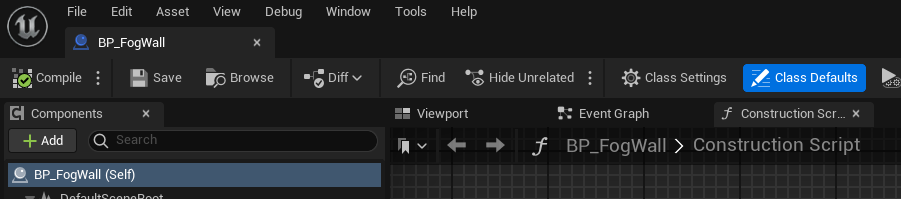
You can adjust the parameters in the class defaults by pressing the corresponding button at the top and use this blueprint in your project.
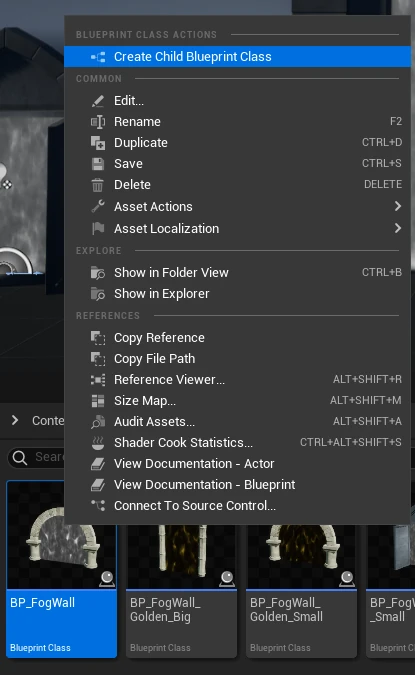
For further customization I recommend using child blueprints. You can create a
child blueprint by right clicking on BP_FogWall and selecting the
corresponding item in the menu.
Inside of the child blueprint you can find the parameters that allow you to customize the effect. They are exactly the same as in parent Blueprint, but you can make lots of different variations this way. You can even create Child BP of Child BP if you need only non-substantial adjustments.
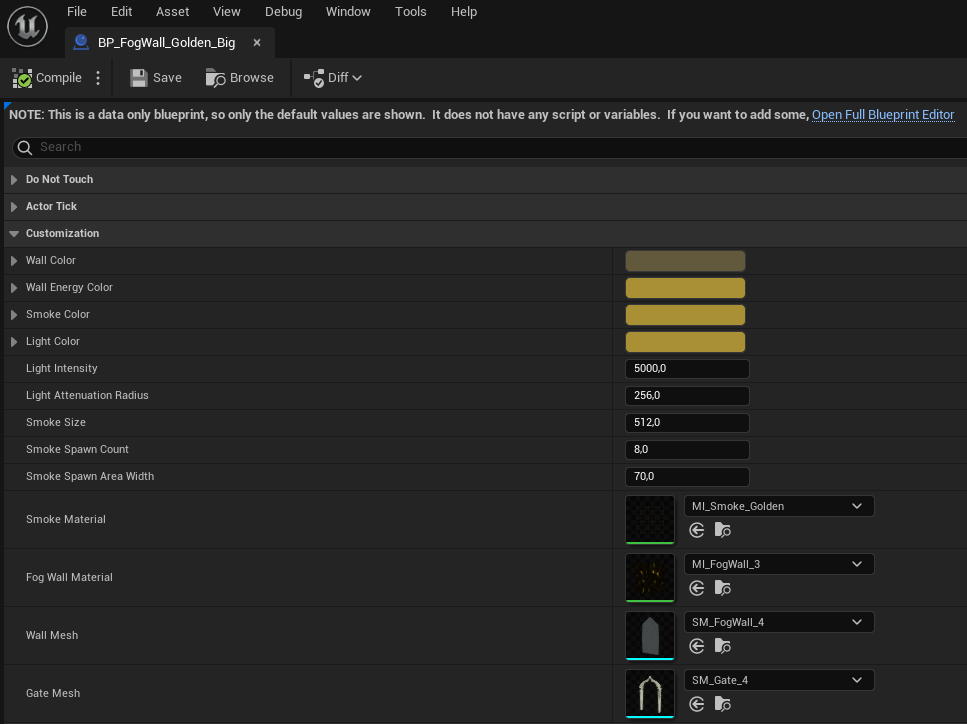
Here you can adjust colors, light, materials, meshes, and smoke parameters.
If you want to adjust the positions of objects inside of the actor, click the blue link on top to open the full blueprint.

Toggle the wall
If you start the game you will see a button at the center that toggles the wall.
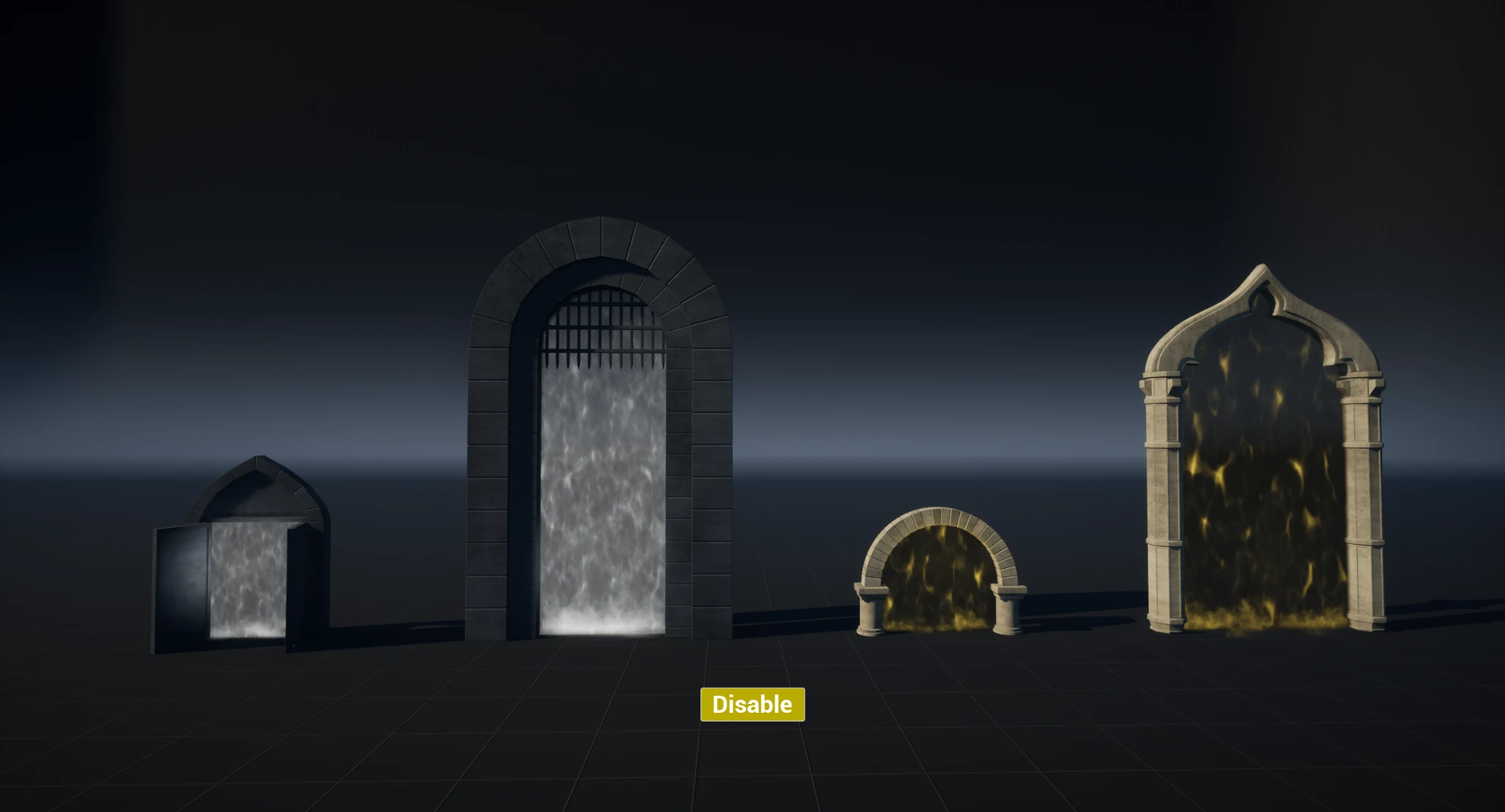
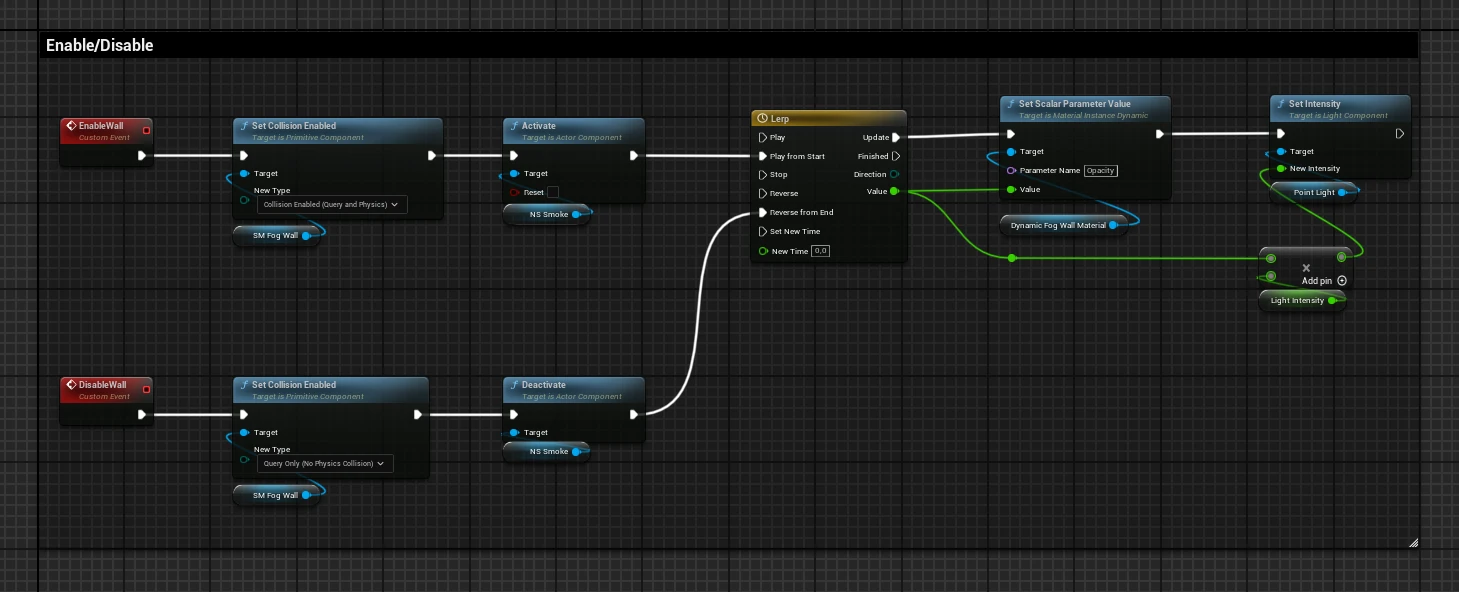
BP_FogWall contains events that allow you to toggle the wall. How to build
communication between your game and the wall blueprint fully depends on your
core interaction system.
Fog plane mesh
Now I will show you how you can create plane mesh for the fog wall for your specific shape using Blender. This step is essential, unless you are using just a square.
First step. Create a plane and shape it to suit your needs.
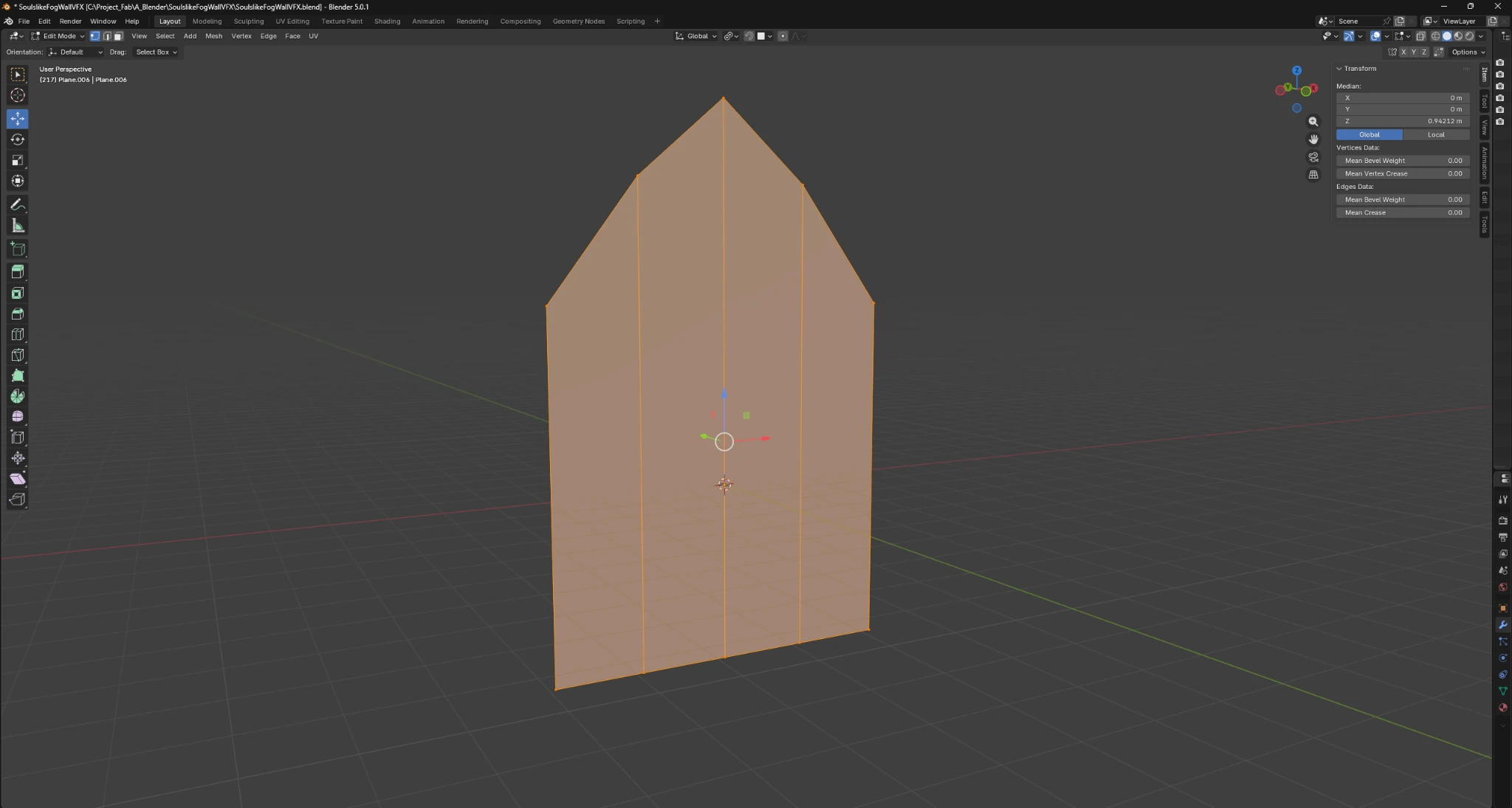
Then enable the front view by pressing 1 on Numpad or just use gismo in the top right corner.
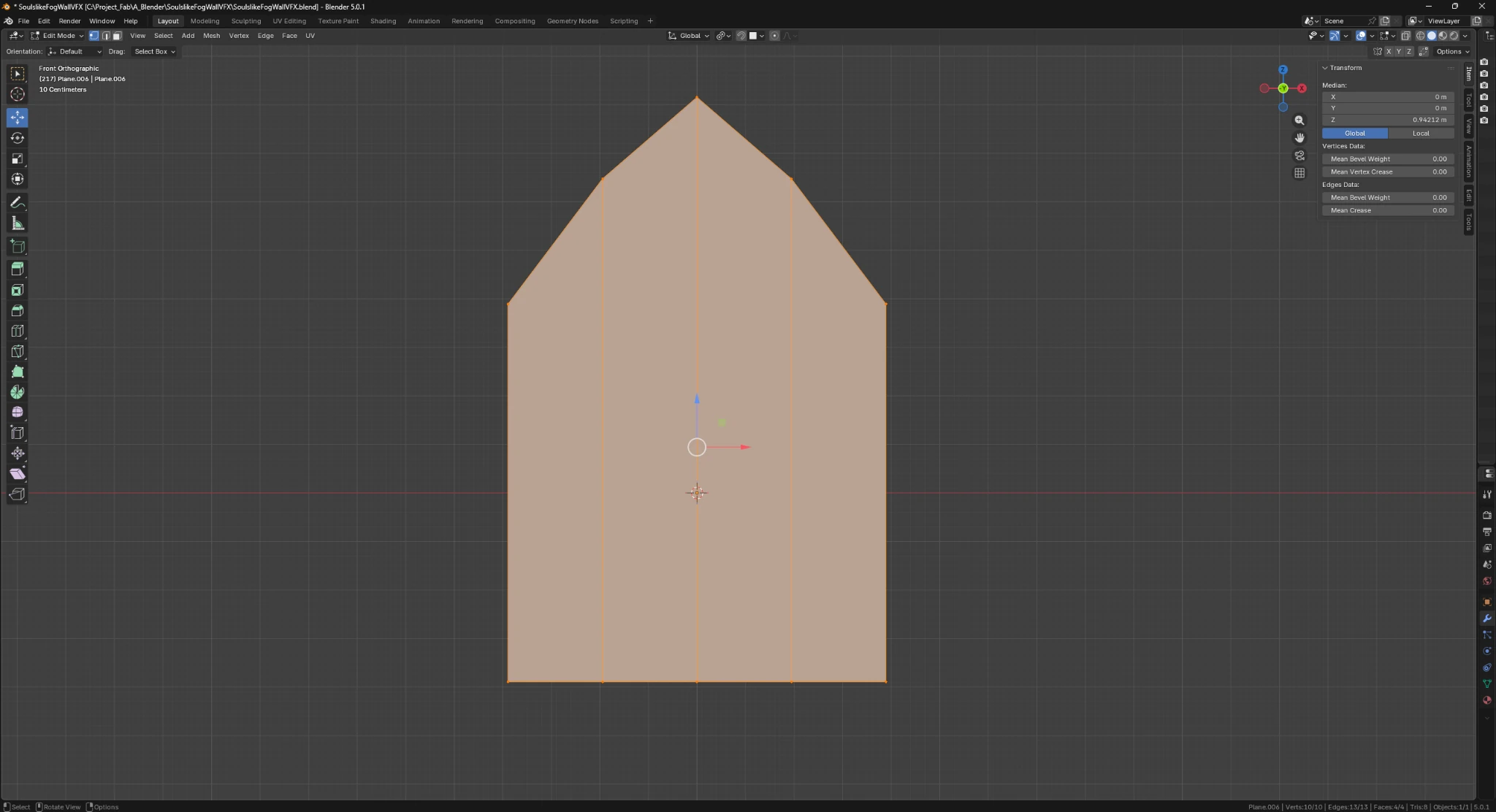
In the edit mode press A to select all faces and press U. Select Project From View option.
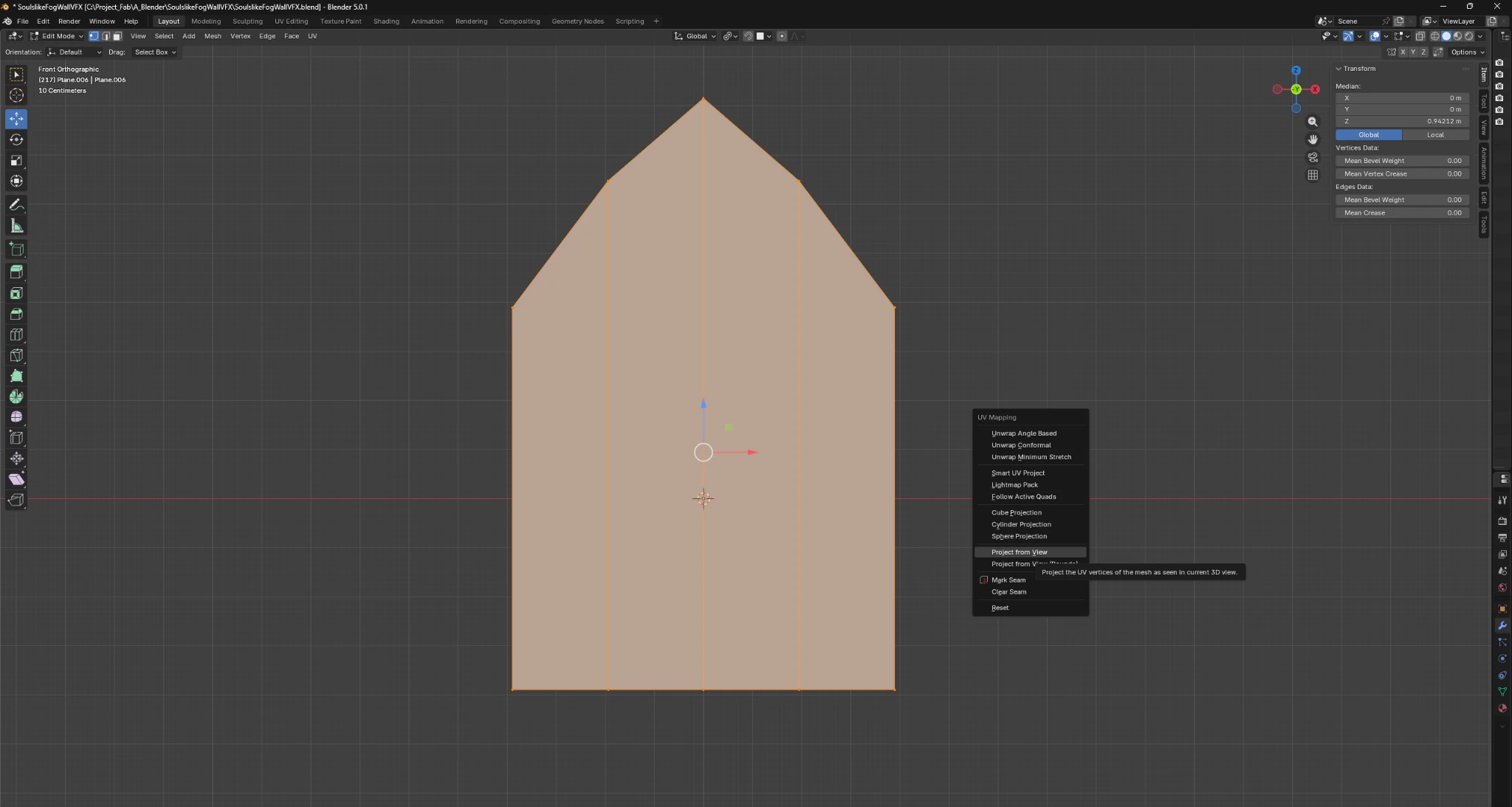
Go to the UV editing tab at the top and adjust the UV to best fit the texture.
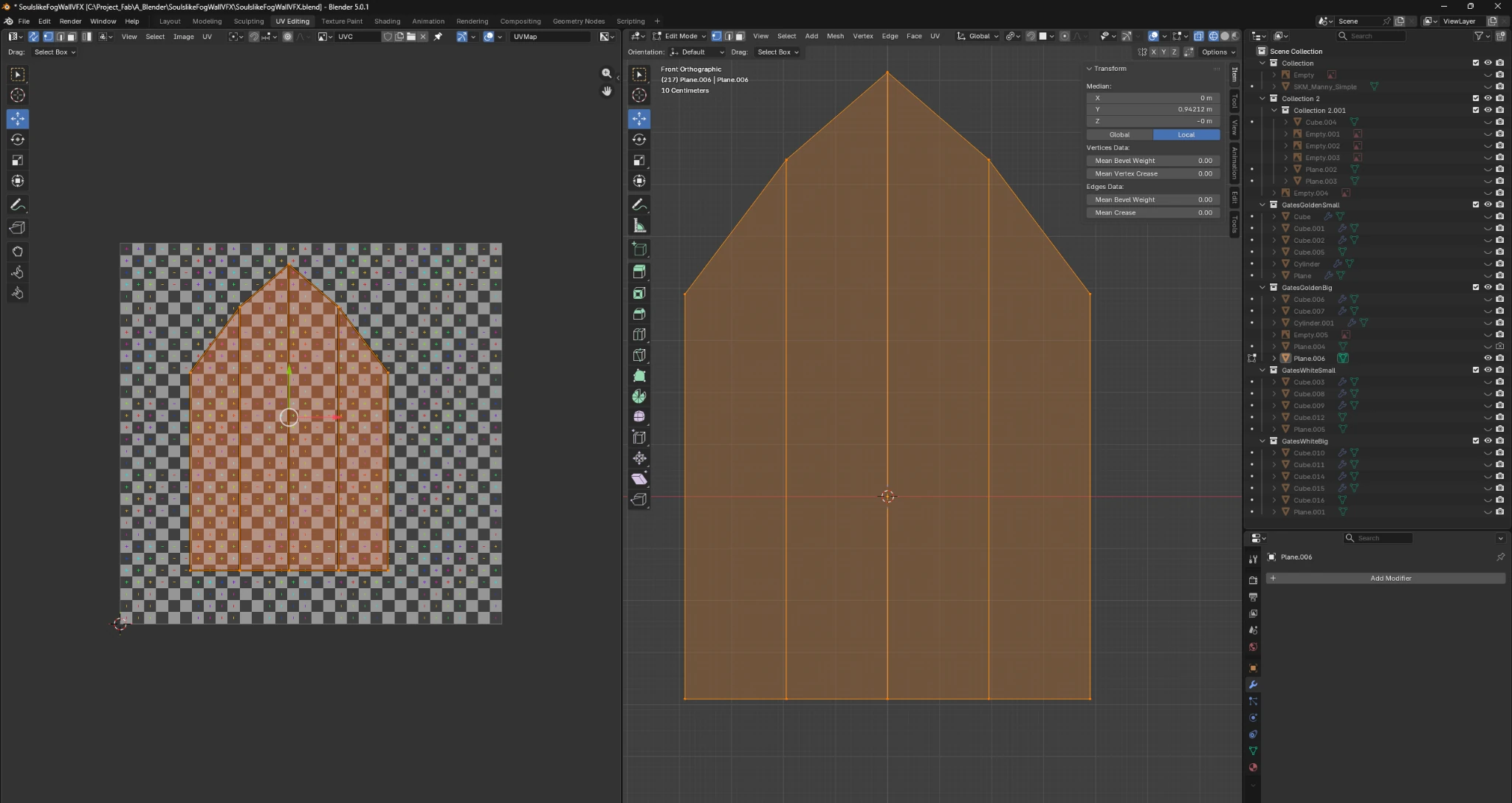
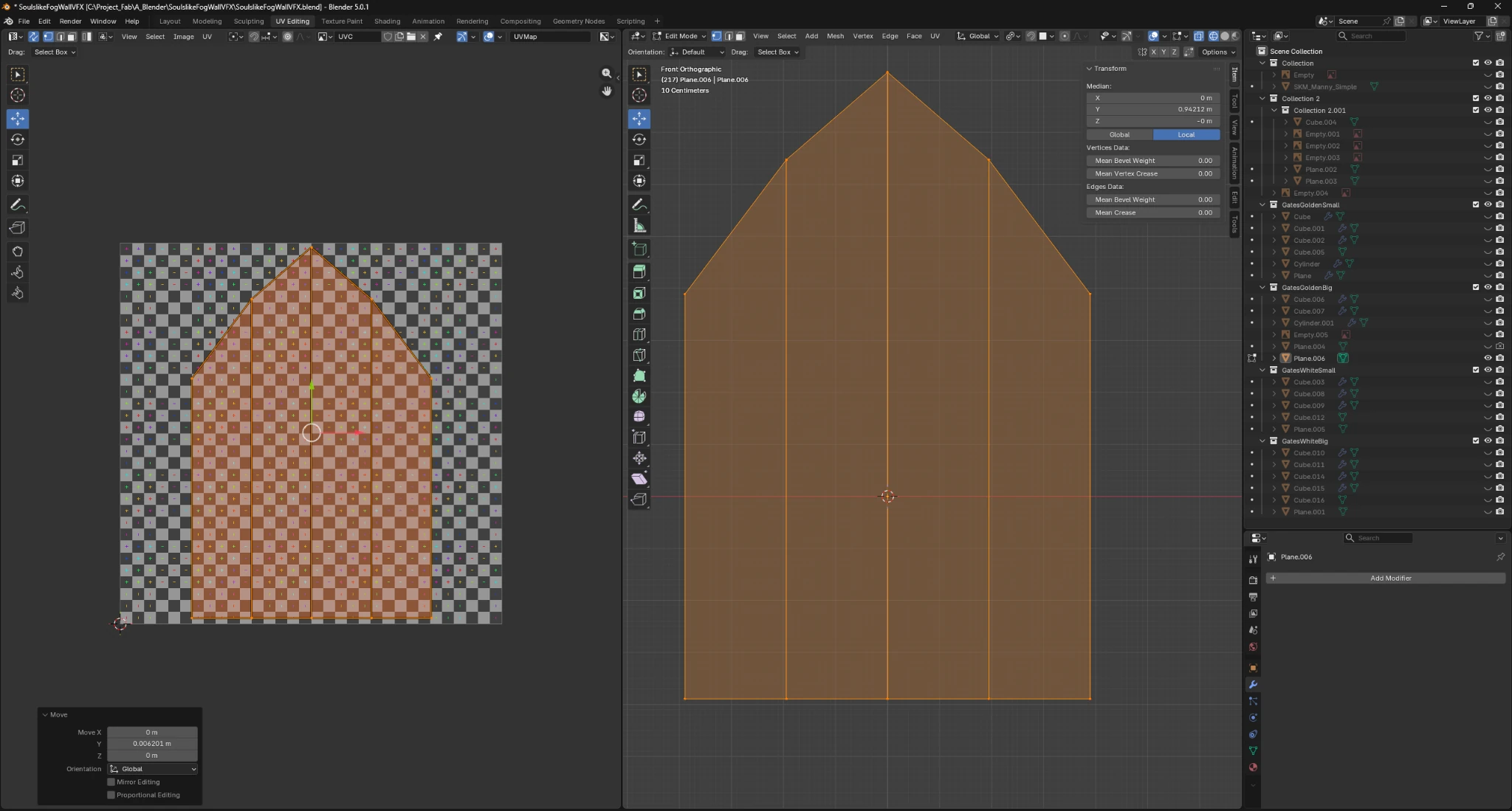
Make sure that the UV goes from top to bottom just like your mesh geometry or the fog will flow in the wrong direction.
After you have done this you can import your mesh into UE and put it inside of the fog wall child blueprint.

If you don't need Gate Mesh
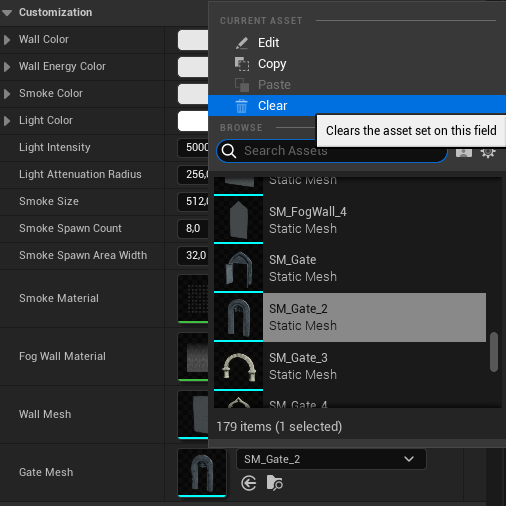
If you don't need the gate mesh and just want the plain wall then clear the gate input and they will be gone.
Supported Unreal Engine Versions
| Unreal Engine | 5.0 | 5.1 | 5.2 | 5.3 | 5.4 | 5.5 | 5.6 | 5.7 | 5.8 |
|---|---|---|---|---|---|---|---|---|---|
| Product version | v1.0 | v1.0 | v1.0 | v1.0 | v1.0 | v1.0 | v1.0 | v1.0 | v1.0 |
Changelog
v1.0
- Initial release